How to Add Line Items in Xactimate
Xactimate Learn
May 2, 2026
Zach Gardner, CEO @ClaimsFlow
How to Add Line Items in Xactimate
Xactimate gives you three ways to add line items to an estimate: Quick Entry, Reference Search, and Keyword Search. Each one works differently — and each one is the right tool for a different situation.
Most estimators default to one method and use it for everything. That works until it slows you down. Understanding how each method behaves, and when to reach for it, is one of the cleaner ways to move through an estimate faster.
Quick Entry
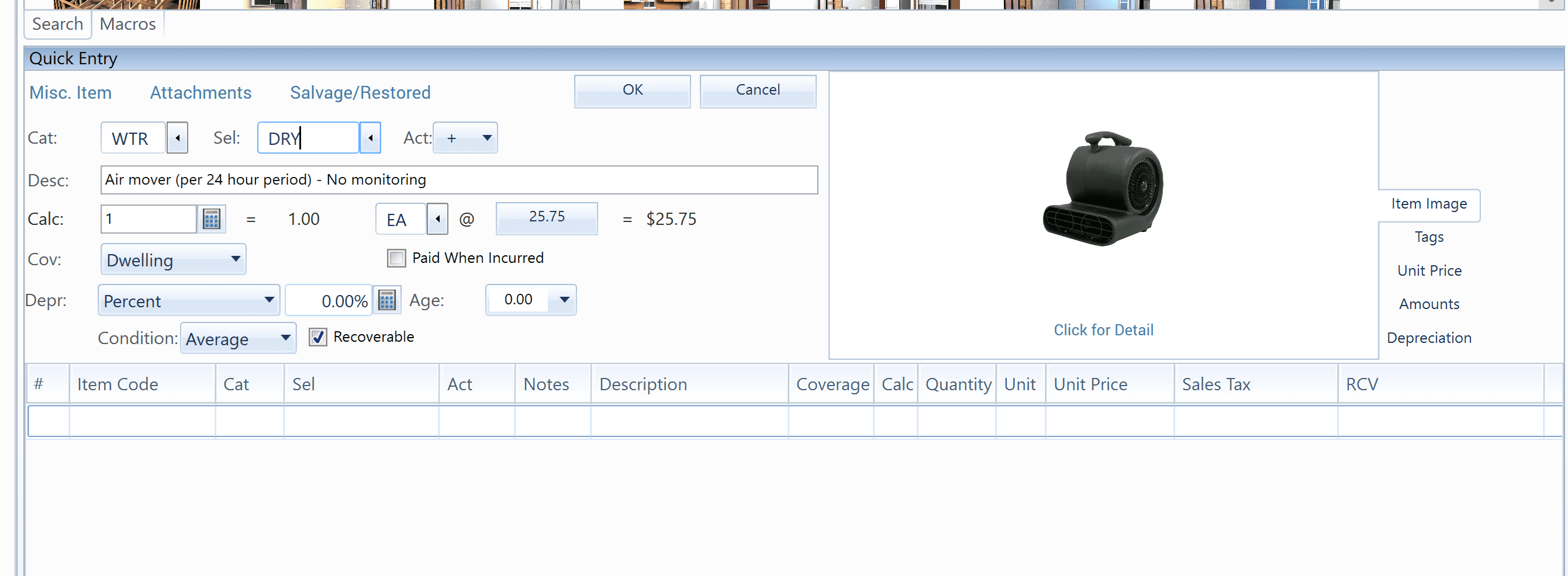
Quick Entry is the fastest method. If you know the CAT/SEL code for the line item you want, you can enter it directly without searching at all. Type the code, confirm the item, move on.
The limitation is straightforward: it requires you to know the code. For estimators who work the same scope repeatedly — a water mitigation specialist writing the same line items dozens of times a month — Quick Entry is the natural default. For anyone working across multiple trades or less familiar scope, it isn't always available without a lookup.
Reference Search
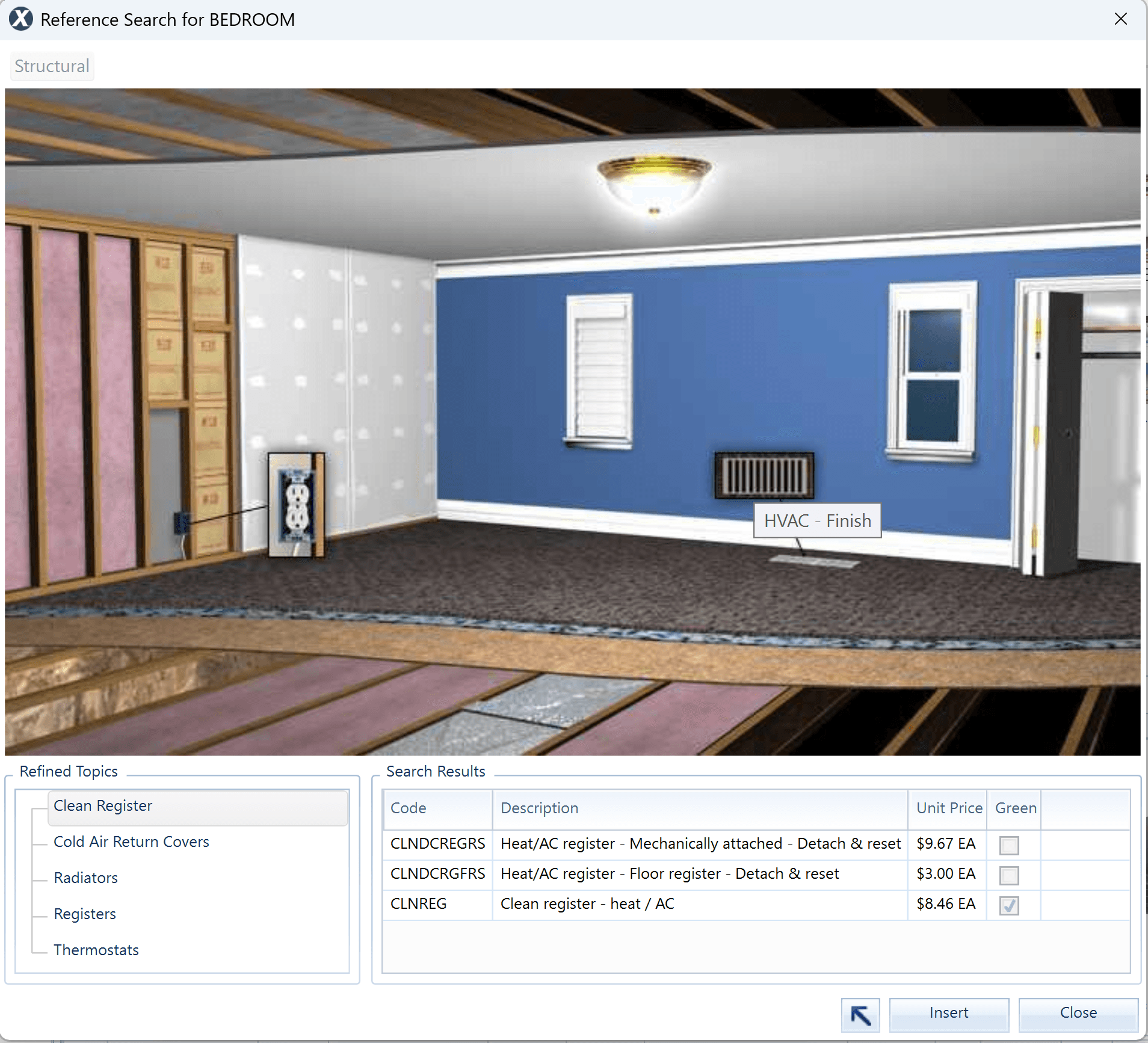
Reference Search lets you browse line items by structural area of the loss — Basement, Kitchen, Bathroom, and so on. Instead of entering a code or typing a keyword, you navigate through the loss areas and see the line items associated with each trade and activity within that area.
This is a discovery method. It works well when you're building scope for a specific room and want to see what Xactimate offers before committing to individual line items. The tradeoff is pace — it's slower than Quick Entry and works best when you know which area of the loss you're working in, even if you don't know the exact item you need.
Keyword Search
Keyword Search is the broadest method. Type a term — "tile," "drywall," "paint" — and Xactimate surfaces every line item containing that word. From there, you review the results and select what fits your scope.
Keyword Search is the fallback most estimators reach for when they don't know the code and aren't sure which structural area to browse. It's flexible and requires no prior knowledge of codes or structure. It's also the slowest of the three — reviewing results line by line adds time, especially on larger estimates with overlapping descriptions.
Which Method to Use
In practice, most estimators use a mix of all three depending on the situation:
Situation | Best Method |
|---|---|
You know the CAT/SEL code | Quick Entry |
Building scope for a specific room or area | Reference Search |
Unfamiliar item or broad scope review | Keyword Search |
Quick Entry is the fastest when it's available. Reference Search is useful when you're working room by room and want to see what applies. Keyword Search is the right fallback when the item is unfamiliar or the description doesn't map cleanly to a code.
The goal is matching the method to the situation rather than defaulting to one approach for everything.
When Your Source Is a PDF
The method question gets more complicated when you're working from a PDF. PDFs strip out the underlying Xactimate data — the CAT/SEL codes, trade and activity structure, and project tree. What remains is a description and a price.
Without the code, Quick Entry isn't available. Reference Search is built for discovery — browsing what's available — but when you're working from a PDF, you already know what line items you need. You're not perusing options; you're trying to match a specific description to an Xactimate item. That leaves Keyword Search as the default — which means re-entering a large estimate item by item, one keyword search at a time.
For high-volume workflows or large-loss files, ClaimsFlow converts PDF estimates directly to Xactimate ESX files, restoring the underlying structure so you can pick up in Xactimate without the re-entry step. You can upload a file and review the results at claimsflow.io.
Related articles:

