What Disappears: Custom Items (Green Items)
Xactimate Learn
Feb 22, 2026
Zach Gardner, CEO @ClaimsFlow
What Disappears: Green Items – Custom Line Items the PDF Hides
This post is part of the What the PDF Doesn't Tell You series — a look at what gets lost when an Xactimate estimate becomes a PDF, and why it matters.
In Xactimate, custom line items are highlighted in green. It's a visual flag that tells you: this item was modified or created outside of the Xactimate ecosystem. The description or pricing may not match what the code originally meant. Pay attention.
When that estimate is exported as a PDF, the green highlight disappears. The custom items are still there — they just look like everything else.
That's the problem. The PDF strips out the one signal that tells you which line items carry non-standard assumptions. And if you're doing estimate analysis, supplementing, or negotiating from a PDF, you're working without it.
What Are Green Items?
Xactimate flags modified items by highlighting them in green — a "green item."
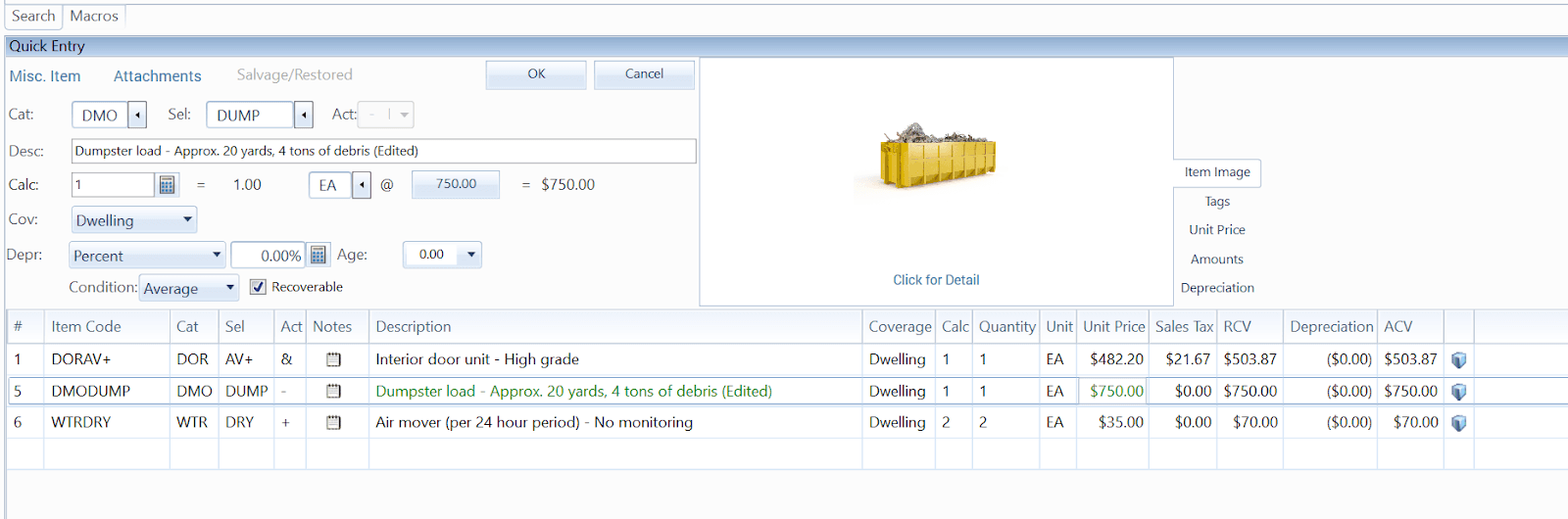
There are a couple reasons someone might create one.
Repurposing existing line items. Sometimes there isn't a suitable line item for a particular repair action. A roofing estimator might want a line item for "seal and paint drip edge", but because it doesn't exist, they modify the description of an existing item: "seal and paint trim – two coats." The code stays the same. The work it represents changes entirely.
Creating new line items. Estimators often need to include outside invoices and custom prices — a Tree Service Invoice, a Southern Chute Invoice, specialty equipment charges. These are typically created using Bid Items, MISC items, or user-defined codes.
Green items give estimators and adjusters the flexibility to include non-standard work and costs in their Xactimate estimate. Xactimate highlights them in green because they fall outside the standard line item list. They carry assumptions the system doesn't underwrite — that's what makes them worth paying attention to.
What the PDF Strips Out
When you export to PDF, the green highlighting is gone. Every line item looks the same — standard and custom, side by side, with no visual distinction.
Some estimators leave indicators — asterisks, Bid Item codes, F9 notes — but in a 60-page estimate, these are easy to miss. And sometimes they're not included at all.
The cost of that missing signal shows up in two ways.
Slower analysis. As William Ledbetter puts it: "Converting a PDF to Xactimate can take 2-3 hours, especially when there are custom line items that I have to dig into." If you're a building consultant performing independent analysis, or a contractor preparing a supplement, you're spending hours hunting for items that Xactimate would have flagged for you automatically. That manual search is one of the biggest bottlenecks in the claims cycle.
Overlooked money. Custom items carry non-standard pricing and scope assumptions. When they blend into the rest of the estimate, they get missed — and the disagreements they represent never surface. These are often the line items where the real negotiation should happen.
Xactimate creates a shared foundation for adjusters and contractors to negotiate from. Custom line items undermine that foundation when they're hidden, turning what should be a focused conversation into guesswork.
How ClaimsFlow Restores Green Items with PDF to ESX
ClaimsFlow automatically flags custom line items when you upload a PDF estimate. The green item data that the PDF stripped out is restored before you make a single edit.
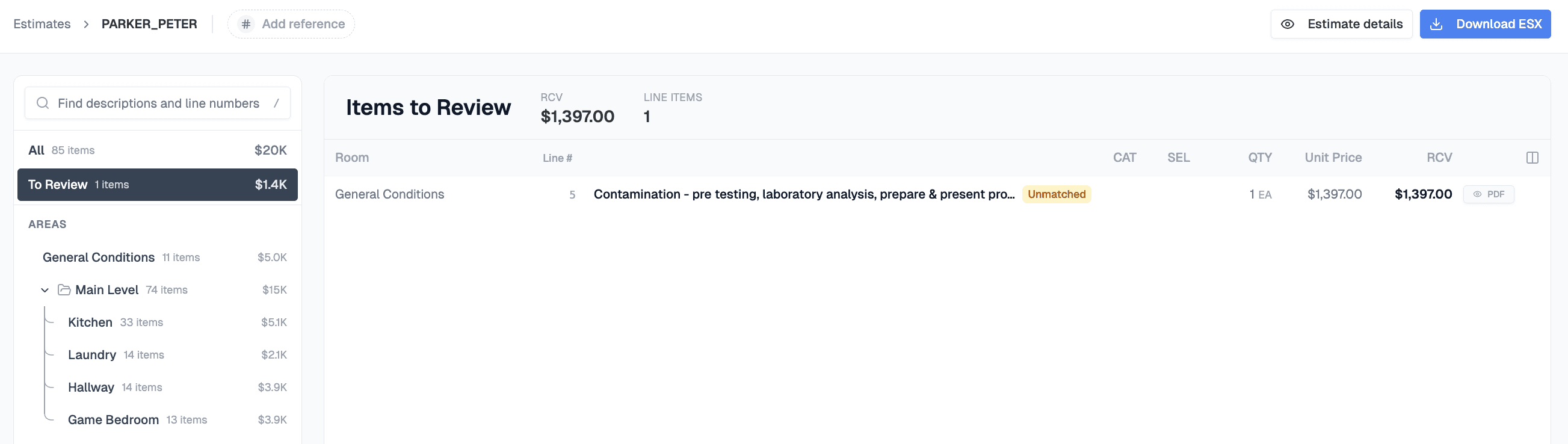
That means full visibility into which items are non-standard — no rebuilding the estimate in Xactimate, no reconciling line-by-line against the PDF, no wondering if you missed something.
Instead of spending time finding the disagreements, you spend it resolving them. That's where your expertise as an estimator, consultant, or adjuster actually matters — making estimate negotiation faster and more focused.
Green items are just one example of what the PDF doesn't tell you. The project tree, trade data, F9 notes, and pricing context all disappear too. ClaimsFlow restores them.
Try It On Your Next Estimate
Upload a PDF estimate and see which custom items ClaimsFlow flags for you. Try for free at claimsflow.io. See how J&J Remodeling saved 12-20 hours per week using ClaimsFlow's PDF to ESX conversion.
Related articles:

